
Introduction
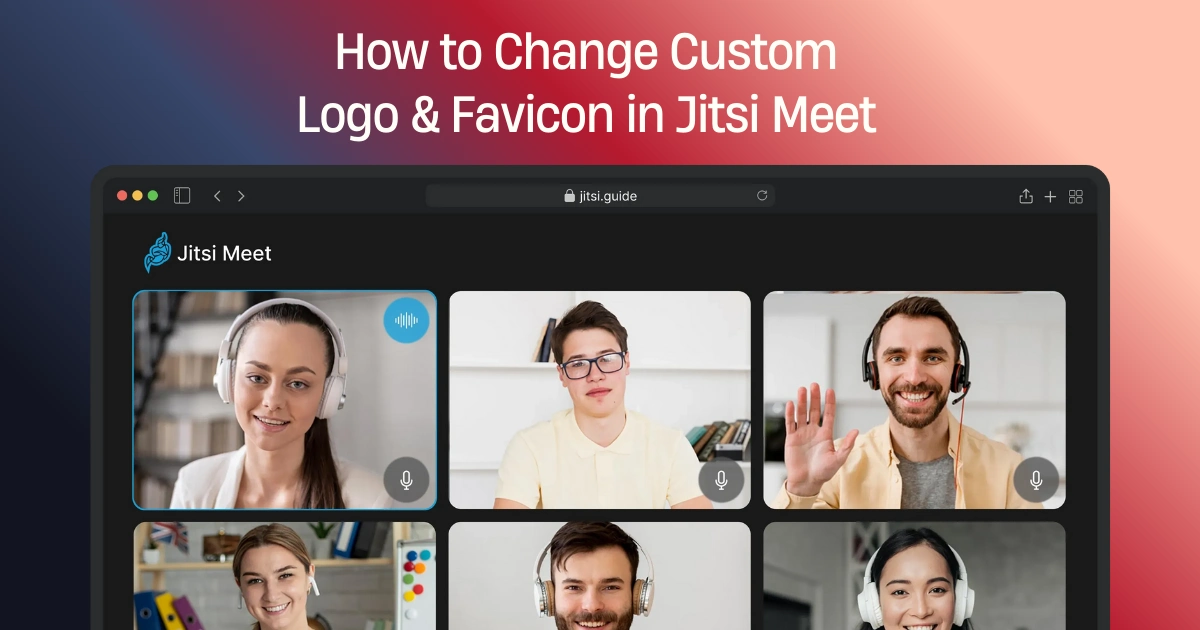
Branding plays a big role in how users experience your video meetings. When clients or team members join a meeting, the first thing they notice is the logo, colors, and overall look of the platform. This is where Jitsi Branding Custom Logo becomes important.
By default, Jitsi Meet comes with its own logo and favicon. While this is fine for testing, it does not look professional for business meetings, client calls, or commercial platforms. Adding your own logo and favicon helps you build trust, improve brand recognition, and give your meetings a polished appearance.
In this guide, you will learn how to change the custom logo and favicon in Jitsi Meet, step by step. The instructions are written in simple English and are based on real-world experience running and customizing Jitsi servers.
What Is Jitsi Branding Custom Logo?
Jitsi Branding Custom Logo means replacing the default Jitsi logo and browser icon (favicon) with your own brand assets. This change affects how your Jitsi platform looks across:
- Meeting screens
- Browser tabs
- Pre-join and loading pages
- Mobile and desktop browsers
It is a basic but powerful step toward creating a branded video conferencing experience.
Why Custom Logo and Favicon Matter in Jitsi
Professional Appearance: A custom logo instantly makes your platform look serious and trustworthy.
Brand Recognition: Users remember your brand when they see your logo in every meeting.
Client Confidence: Clients feel more secure joining a branded platform instead of a generic one.
White-Label Experience: If you offer Jitsi as a service, branding is essential.
Where Jitsi Stores Logo and Favicon Files
Before making changes, it helps to understand where Jitsi keeps its branding files.
Default Paths (Docker & Non-Docker)
Most Jitsi installations use one of these paths:
/usr/share/jitsi-meet/images/
or
/usr/share/jitsi-meet/static/
Inside these folders, you will find files like:
- watermark.svg
- logo-deep-linking.png
- favicon.ico
How to Change Custom Logo in Jitsi Meet
Step 1: Prepare Your Logo
Your logo should be:
- Transparent background (PNG or SVG)
- Clear and readable
- Proper size (recommended width: 200–300px)
Rename your file to:
watermark.svg
or
watermark.png
Step 2: Upload the Logo
Replace the existing file:
/usr/share/jitsi-meet/images/watermark.svg
Make sure permissions are correct:
chmod 644 watermark.svg
Step 3: Update Interface Configuration
Edit the interface config file:
/etc/jitsi/meet/your-domain-config.js
Add or update:
brandingWatermarkLink: '',
This prevents Jitsi from redirecting users to the official site.
How to Change Jitsi Branding Custom Logo on the Pre-Join Page
Jitsi also shows branding before users enter the meeting.
Update These Files
Replace:
logo-deep-linking.png
Location:
/usr/share/jitsi-meet/images/
This ensures your logo appears during loading and join screens.
How to Change Jitsi Favicon
The favicon is the small icon shown in browser tabs.
Step 1: Create a Favicon
Your favicon should be:
- Square (32x32 or 64x64)
- .ico format
- Simple and clear
Step 2: Replace the Default Favicon
Replace the file:
/usr/share/jitsi-meet/images/favicon.ico
Step 3: Clear Cache
Restart services:
systemctl restart jitsi-videobridge2
systemctl restart prosody
systemctl restart jicofo
Clear browser cache or test in incognito mode.
Jitsi Branding Custom Logo for Docker Users
If you are running Jitsi using Docker, branding works slightly differently.
Mount Custom Branding Folder
Example in docker-compose.yml:
volumes:
  - ./branding:/usr/share/jitsi-meet/images
Place your logo and favicon inside the branding folder.
Common Mistakes to Avoid
Wrong File Format: SVG or PNG works best. Avoid large JPG files.
Cache Issues: Browser cache can hide changes. Always test in incognito.
Permission Errors: Files must be readable by the Jitsi service.
Overwriting During Updates: Jitsi updates may reset branding. Always keep backups.
Best Practices for Jitsi Meet Branding
- Keep logo simple and readable
- Match favicon with logo
- Test on mobile and desktop
- Document your branding changes
- Reapply branding after upgrades
Is Jitsi Branding Custom Logo Enough for Full White Labeling?
Changing the logo and favicon is the first step, but full branding may include:
- Custom colors
- Button styles
- Welcome text
- Domain branding
- Custom meeting URLs
For businesses, deeper customization creates a complete branded experience.
Security and Trust Considerations
Branding does not affect:
- Encryption
- Media security
- Server performance
It is a visual change only and completely safe when done correctly.
Who Should Customize Jitsi Branding?
- Businesses using Jitsi internally
- SaaS providers offering video meetings
- Schools and universities
- Telehealth platforms
- Event organizers
Conclusion
Custom branding is one of the easiest ways to improve how your video platform looks and feels. With Jitsi Branding Custom Logo, you can replace the default logo and favicon to create a professional and trusted meeting experience.
👉 If you want advanced Jitsi branding or white-label customization, consider working with Jitsi experts to ensure long-term stability and support.